On-Page SEO
Image SEO: Alt Text, File Names and Page Speed
Write useful alt text, name files clearly and keep images from slowing your pages down.
By the Seozumi editorial team · · about 5 min read
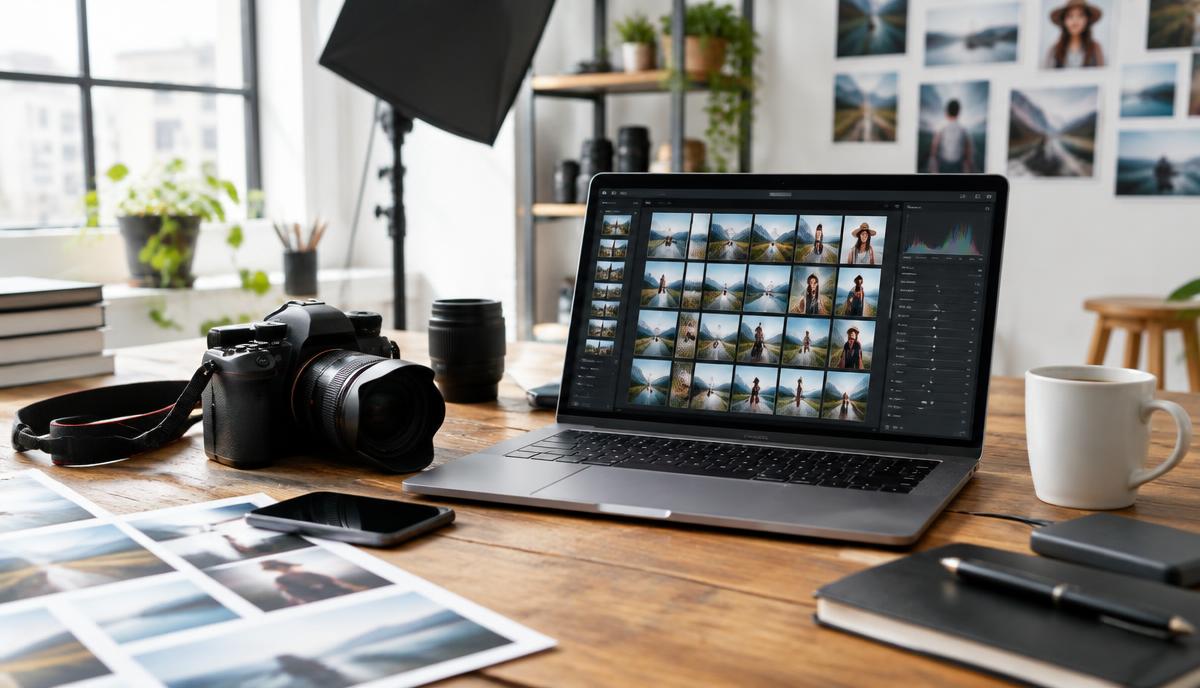
Images help readers understand your content, can appear in Google Images and other search features, and are often the heaviest part of a web page. Good image SEO means describing images clearly for people who cannot see them, naming and placing them sensibly, and making sure they do not slow pages down.
Alt text: write for people first
Alt text (the alt attribute) describes an image for screen reader users and appears if the image fails to load. Google also uses it to understand the image. Google’s image SEO best practices and the W3C alt text decision tree are good references.
How to write it
- Describe what the image shows and why it is on the page, in one short sentence.
- Be specific: “Technician replacing the pressure relief valve on a gas water heater” is better than “water heater”.
- Include a relevant term only if it fits naturally; do not list keywords.
- Do not start with “Image of” or “Picture of”; screen readers already announce it as an image.
- Use empty alt text (
alt="") for purely decorative images so screen readers skip them. - For charts or images containing important text, put the key information in the surrounding text as well.
| Weak alt text | Better alt text |
|---|---|
| plumber plumbing plumber leeds | Plumber fitting a new kitchen sink tap |
| IMG_2041 | Before and after of a repaired leaking copper pipe |
| logo | Example Plumbing logo |
File names and placement
- Use short, descriptive file names with hyphens:
tankless-water-heater-install.jpg, notDSC00123.jpg. - Place images near the text they illustrate; surrounding text and captions help both readers and search engines.
- Use a regular
<img>element with asrc; images loaded only as CSS backgrounds are not indexed as images. - Use original photos where possible. Stock images are fine, but your own photos of real work are more helpful and distinctive.
Make images fast
- Resize. Do not upload a 5,000-pixel photo to show it 800 pixels wide. Export at roughly the largest size it will display (allowing for high-density screens).
- Compress. Use a modern format such as WebP or AVIF where supported, or well-compressed JPEG for photos and PNG for simple graphics with transparency.
- Responsive images. Use
srcsetandsizes(many platforms do this automatically) so phones download smaller files. - Lazy-load below the fold. Add
loading="lazy"to images further down the page, but not to the main image at the top, which should load immediately. - Set dimensions. Include
widthandheightto reserve space and avoid layout jumps.
These steps directly help Largest Contentful Paint and layout stability, two of the Core Web Vitals.
Platform notes
- WordPress: set alt text in the media library or block settings; image optimization plugins can convert and compress automatically.
- Shopify: edit alt text by clicking each product image; Shopify serves resized versions automatically.
- Wix and Squarespace: set alt text in each image’s settings panel; both handle resizing for display.
Image sitemaps and indexing
Most sites do not need a separate image sitemap; Google finds images on crawlable pages. If important images are loaded by JavaScript in ways Google may not discover, you can list them in your sitemap. Check that robots.txt does not block your image folders.
Quick audit checklist
- Every meaningful image has descriptive alt text; decorative images have empty alt.
- No image over a few hundred KB without good reason.
- Main image is not lazy-loaded; others are.
- Width and height set on all images.
- File names describe the content.
- Images are not blocked in robots.txt.
Images are one part of on-page quality. Pair this with clear titles and descriptions and good internal links.